


Cellgym Software-Updates
Regularly update the firmware and software of your Cellair model.
Download the update files and install them. If this does not work for you, it is also possible via remote maintenance.
Follow the instructions below to update your firmware and software.
1. Preparations for the installation
Performing software updates – what should I pay attention to?
Software-Controller
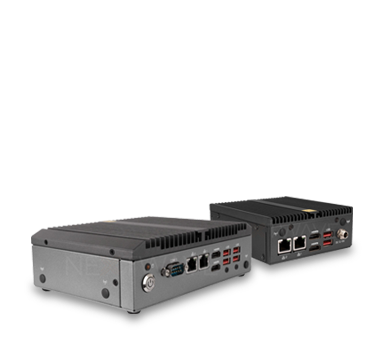
A prerequisite for installing software updates is a powered-on and
network-accessible controller with the Cellgym software.
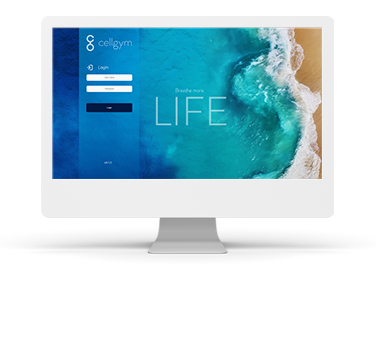
Application software
To install an update, log in to the Cellgym software with ‘admin‘.
Other users must log out during the update process.
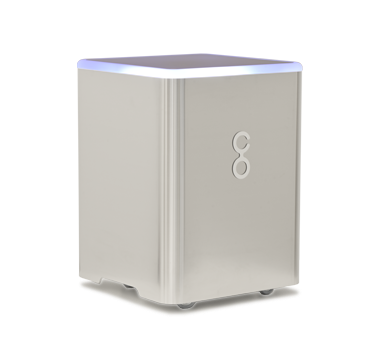
Cellair Hypoxicator
For a firmware update, your Cellair device must be in ‘ready for operation’ mode (green LED). Training operations are not possible during the update.

2. How to update your software
Simple step-by-step installation guide including video tutorial

Create backup
Before the software update, we first perform a backup of the database. You can find the backup function in the ‘System’ menu. By clicking the ‘Create Backup’ button, your database will be saved in a backup file on the controller.
Note: Creating a backup can take several minutes.

Save backup externally
After successfully backing up the database, save the generated backup file to an external storage device.
This is the only way to protect yourself from potential data loss in case of a database failure.

Install update
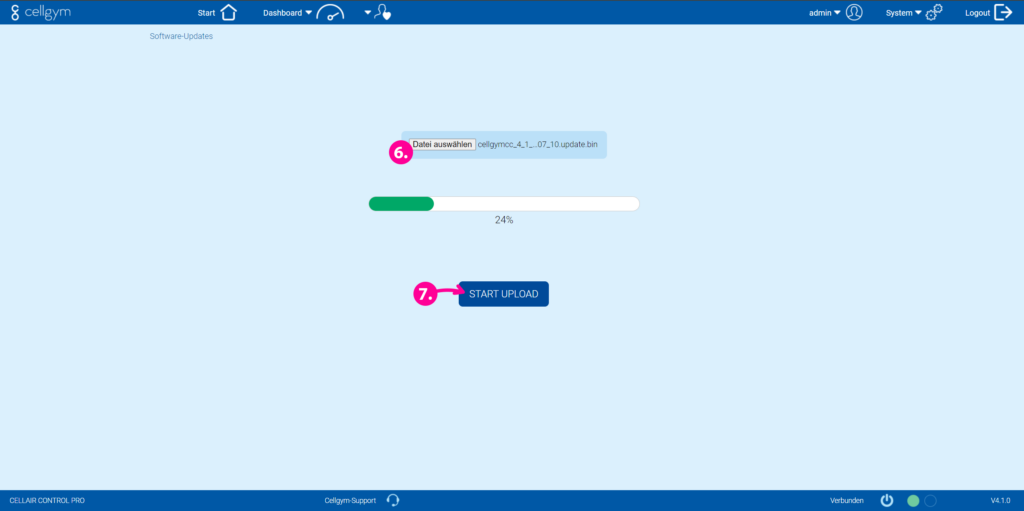
To install the update, go to the ‘System’ menu and select ‘Updates’. Click the ‘Choose File’ button (6) and select the downloaded update file. After selecting the file, start the update by clicking the ‘Start Upload’ button (7).
After the update file has been fully uploaded, click the button (7) again to restart the controller.
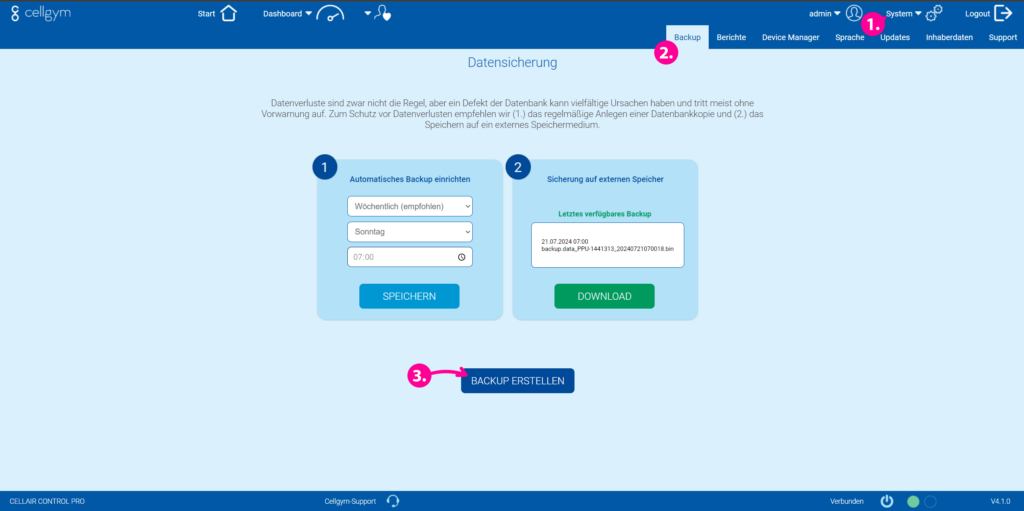
[Click] to enlarge image
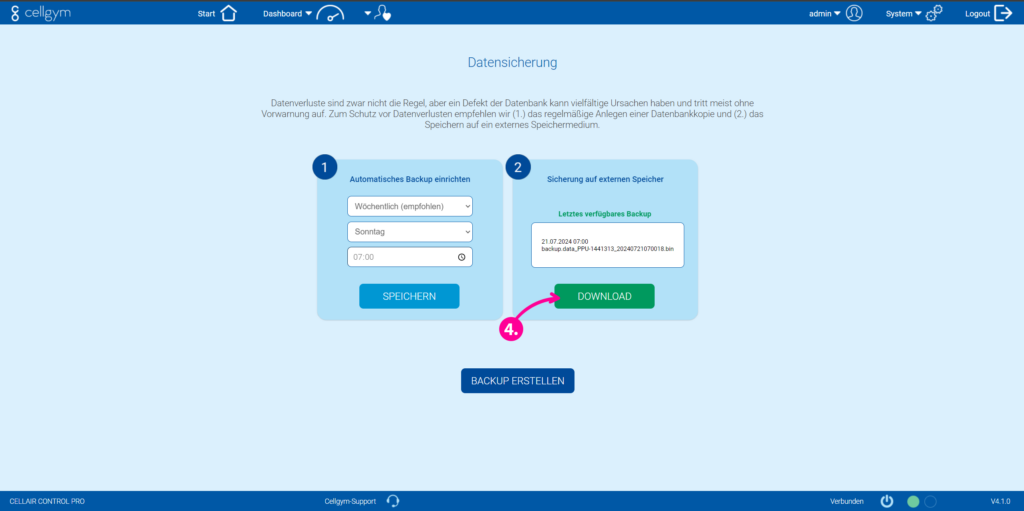
[Click] to enlarge image
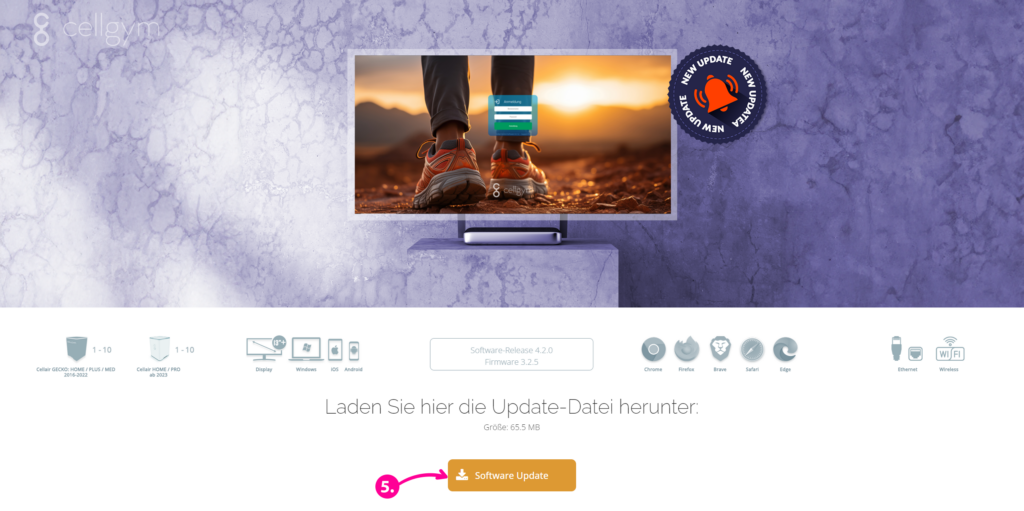
[Click] to enlarge image
[Click] to enlarge image
Video-Tutorial “Software-Update” (3:29 min)
Firmware updates (model '23 onwards)
Firmware refers to the part of the software that is permanently implemented on your Cellair model.
Download the update file and install it. If this does not work for you, remote maintenance is also possible.
Follow the instructions below to update your firmware.
How to update your firmware
Simple step-by-step guide including video tutorial
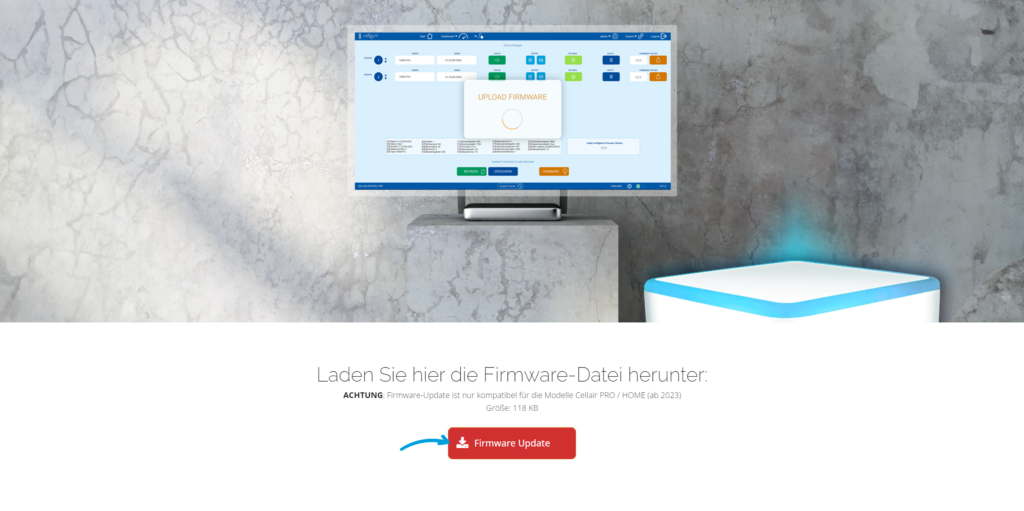
Download firmware
In the first step, download the latest firmware from our portal and save this file locally on your computer.
Note: Continue with the following steps only outside of regular training operations.
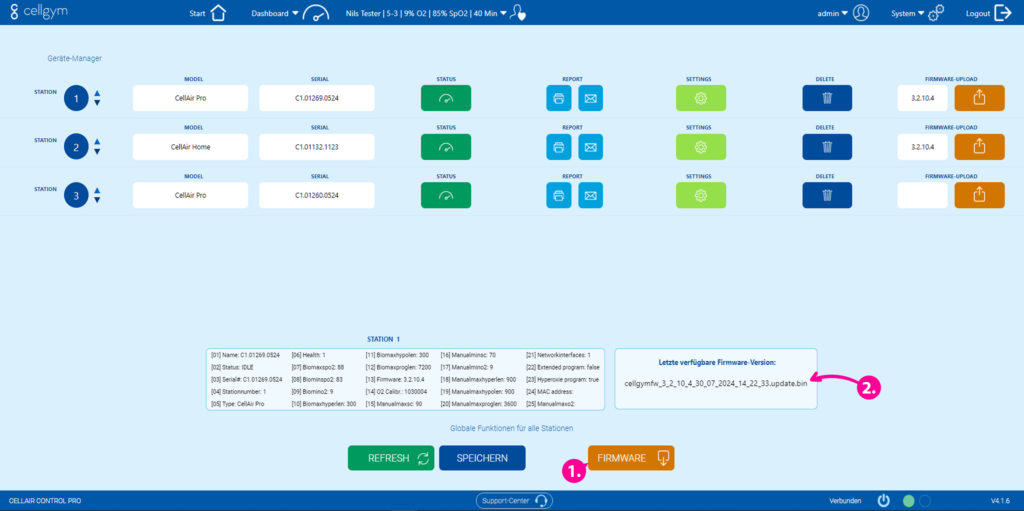
Save firmware to controller
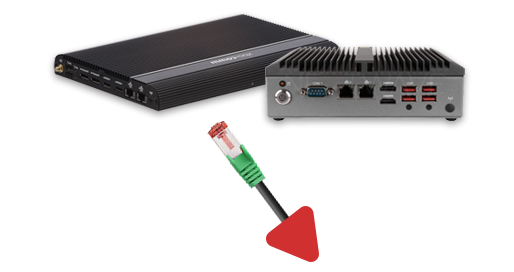
Next, upload the firmware file to the controller (1). The latest uploaded version will be displayed in the ‘Latest available firmware version’ field with the version number (2). You can find a release history of firmware versions here.

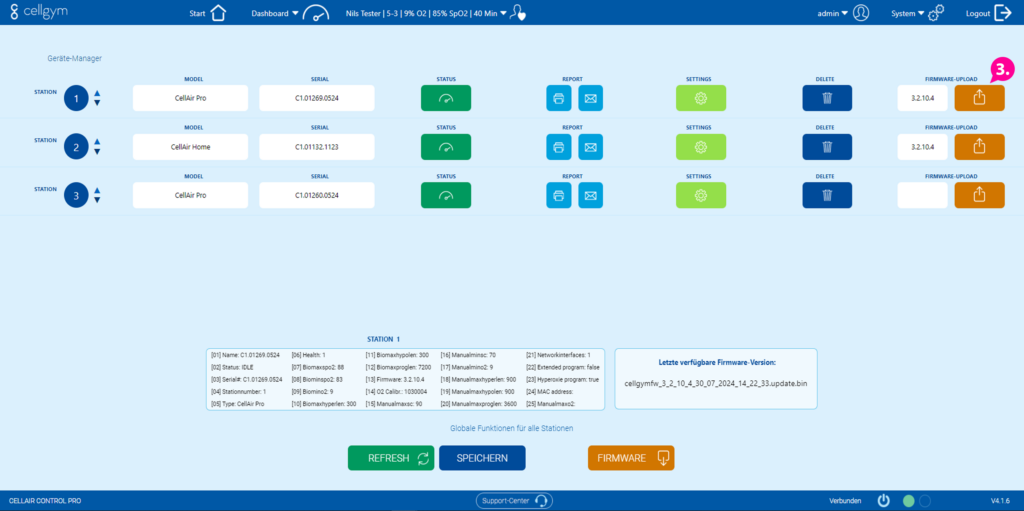
Install firmware
The final step for the firmware update is the installation on your Cellair device. Please keep your Cellair device turned on until the update is fully transferred. Be sure to watch the following video tutorial before performing the update!
[Click] to enlarge image
[Click] to enlarge image
[Click] to enlarge image
Video-Tutorial “Firmware-Update” (3:09 min)
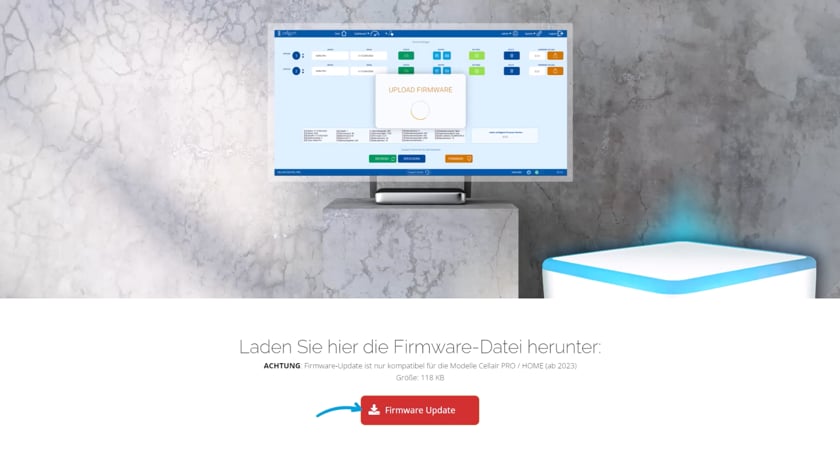
Download the firmware file here:
WARNING: Firmware update is only compatible with Cellair PRO / HOME models (from 2023 onwards)
File size: 118 KB
Contact Service
Online Inquiry
Through our online form, you can reach us 24/7 with your concerns. Typically, you will receive a response within 24 hours, but no later than the next business day.
By Phone
Do you have a problem and wish to contact one of our support staff directly?
Our support team is available Monday to Friday from 9 AM to 4 PM!
Device Maintenance/Repair
Regular maintenance guarantees flawless functionality, high durability, and long-term value retention of your Cellair models.
***
Support via Remote Maintenance
An expert can provide the necessary assistance through remote control of your PC.
Scheduling an appointment is required for this service.
User-Manual
Always up-to-date, you can find the user manual for your hypoxia device and the operating manual for the training control software in this section.
***
Training & Online-Course
In the training portal, we offer extensive video course material on hypoxia training, as well as webinar recordings and roundtable event sessions.
***
Firmware & Software-Updates
To fully utilize your product, keep the software and firmware of your Cellair model up to date. Everything you need for this can be found in the download area.
FAQ & Helpcenter
In this section, you will find an overview of frequently asked questions (FAQ) and a compilation of known issues and their solutions.
***
Product Registration
Please register your Cellair product with the serial number. This way, you will receive all news and software updates for your product.
***